


 ELK - Log Analytics
Canvas
Canvas lets you create highly customized visual presentations based on Elasticsearch data. You can design interactive workpads that combine charts, metrics, text, images and other visual elements in a free-form layout.
Canvas works much like a presentation application such as PowerPoint, where Canvas is the application, each workpad is a separate presentation, and each page within a workpad is like a slide.
You can create as many workpads as you need, but Canvas displays only one workpad at a time. To switch to a different workpad, return to the Canvas list and open the workpad you want.
For a full description of every feature, see the official Elastic documentation on Canvas.
Canvas goes beyond standard dashboards. Use it to build more flexible, presentation-style views, for example for reports, monitoring screens or executive summaries.
Roles and Permissions
Depending on the role defined by the contract with your organization, you might have different permissions:
VIEWER: Read
EDITOR: Create, Read, Update and Delete
ADMIN: Create, Read, Update and Delete
Create a Workpad
Click Create workpad to open a new workpad:
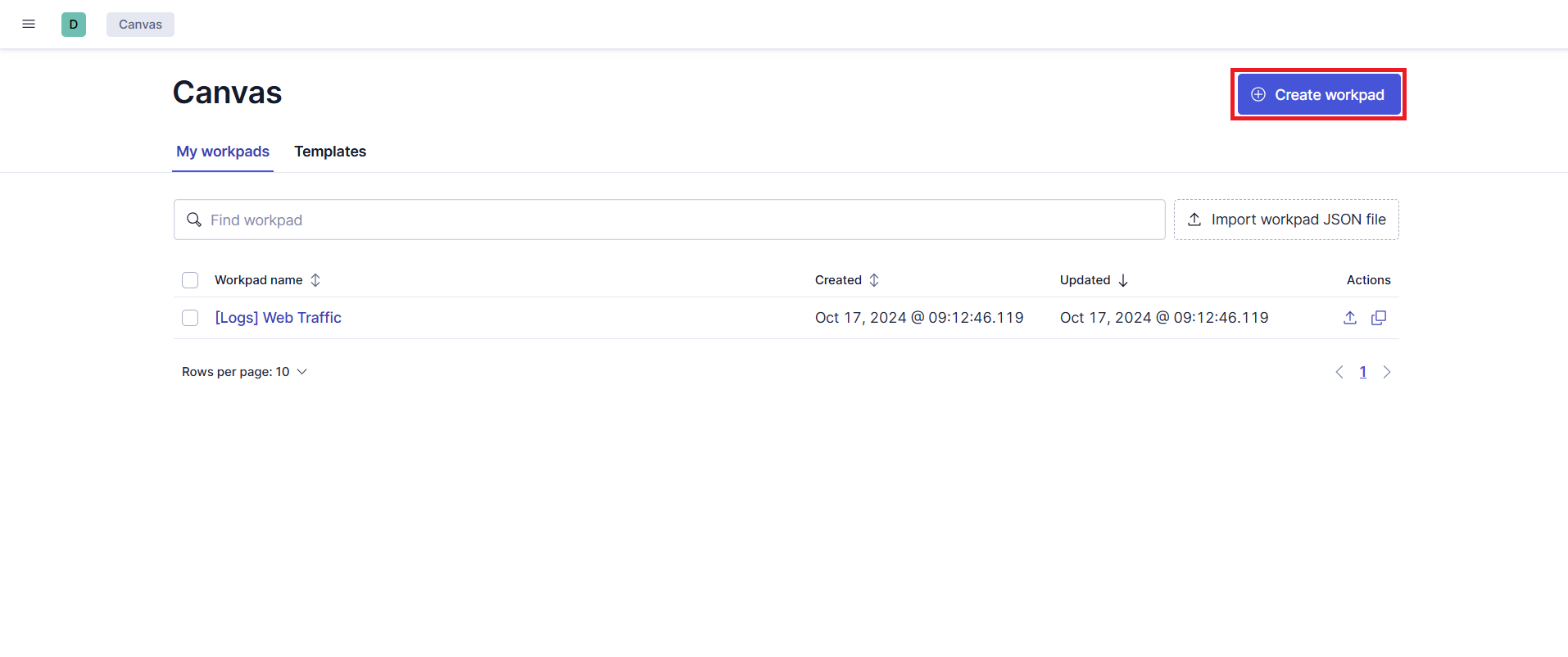
Fig. 230 Creating a new workpad
The workpad is a free-form page where you can arrange data, charts, text, images and graphic elements in any layout you like.
The toolbar at the top of the page has the main actions for building the workpad:
Add element: insert new elements into the workpad
Add from library: add saved items from the library
Select type: choose the type of element to add
View / Edit: switch between view mode and edit mode
Share: share or present the workpad
Start from these controls when you build and manage a workpad.
Workpad Settings
The Workpad settings panel on the right side lets you set the properties of the whole page:
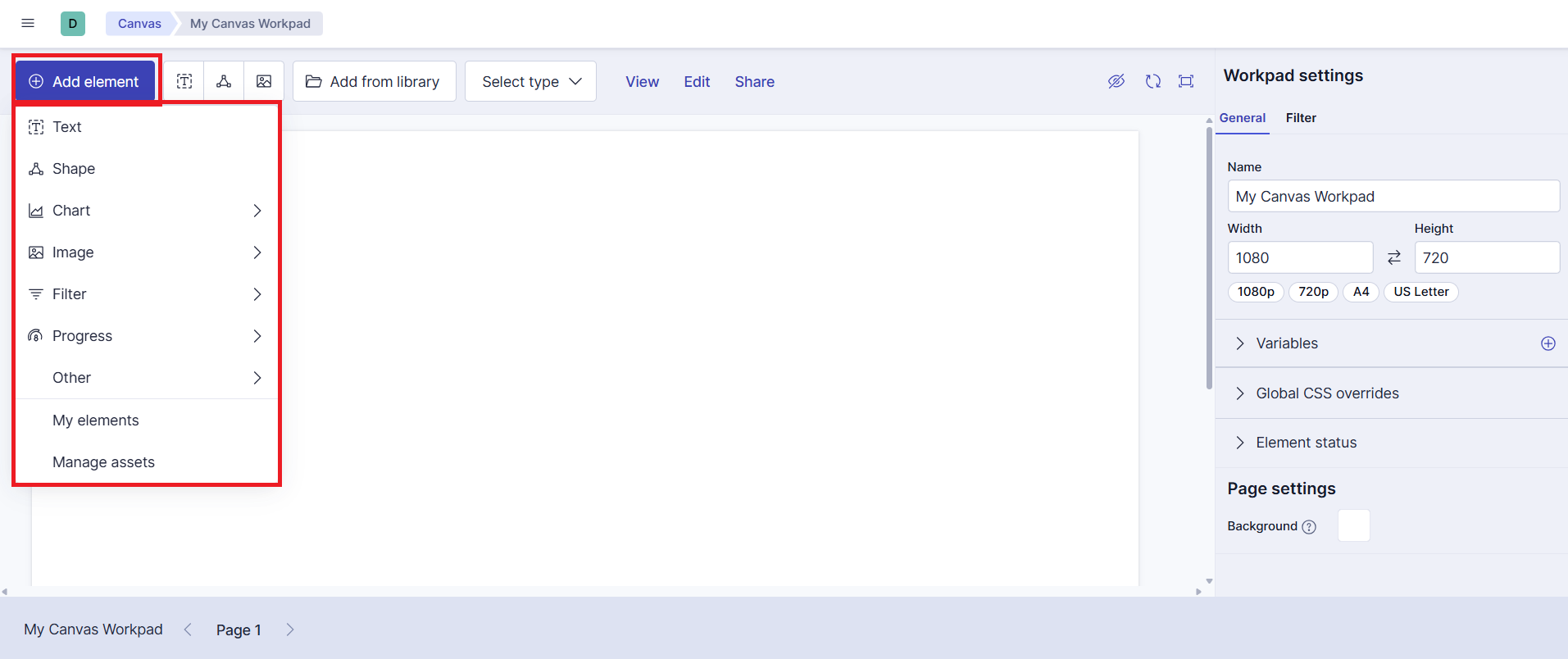
Fig. 231 Workpad settings panel
Name
Width and height
page format presets, such as 1080p, 720p, A4 or US Letter
Variables
Global CSS overrides
Element status
page background
Use these settings to fit the workpad to different screens or presentation formats.
Further reading: Canvas in the Elastic documentation.

