


 ELK - Log Analytics
Cases
The Cases section is where you track an operational issue from the moment it’s detected until it’s resolved. Instead of spreading notes, alerts and findings across chat channels and individual alerts, a case keeps them in one record: the description of the problem, the alerts it relates to, the comments of everyone working on it, and its current status and severity. This is most useful when several people are involved or when an issue stays open for more than a few hours.
Roles and Permissions
Depending on the role defined by the contract with your organization, you might have different permissions:
VIEWER: Read
EDITOR: Create, Read, Update and Delete
ADMIN: Create, Read, Update and Delete
Create a Case
Open . The page starts with the number of open, in progress and closed cases and the average time to close; below it, the list shows all cases with their assignees, tags, status, severity and dates. Use the Severity, Status, Assignees and Tags filters, or the search bar, to find the case you need.
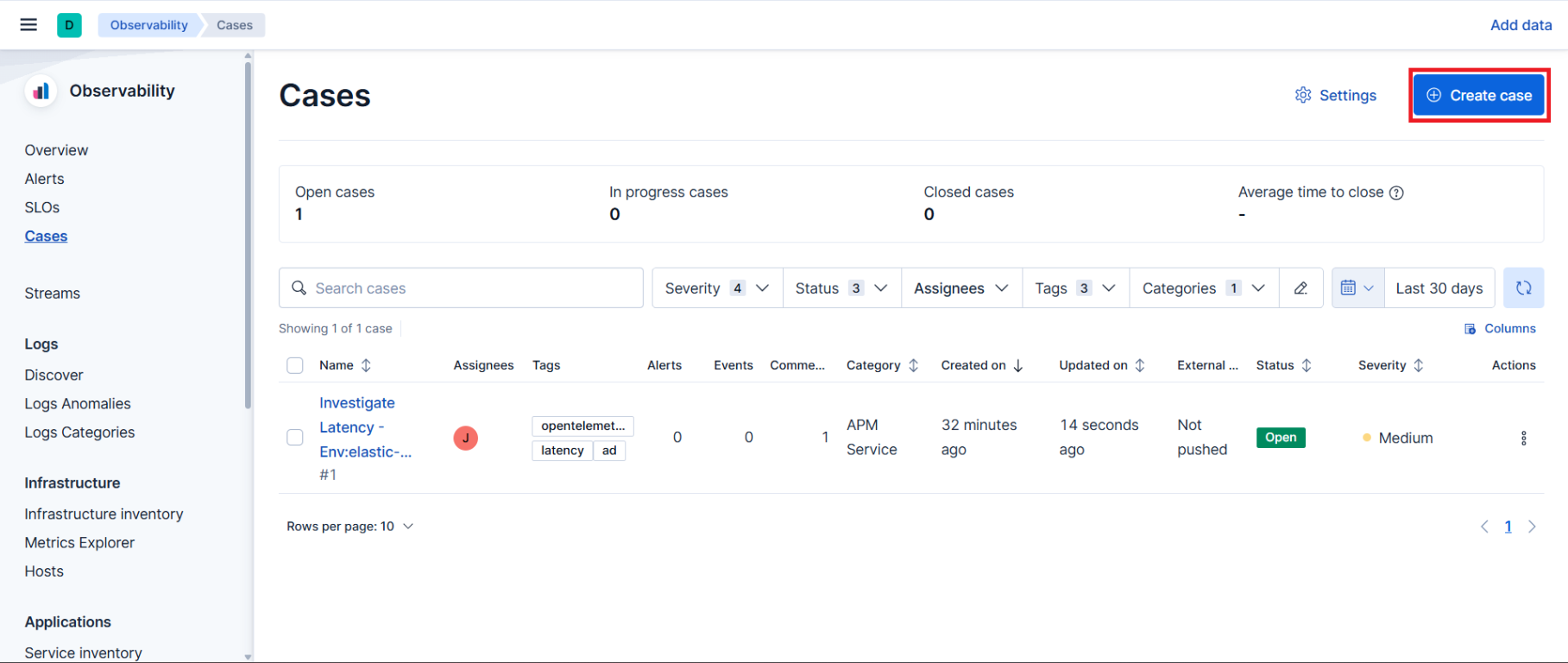
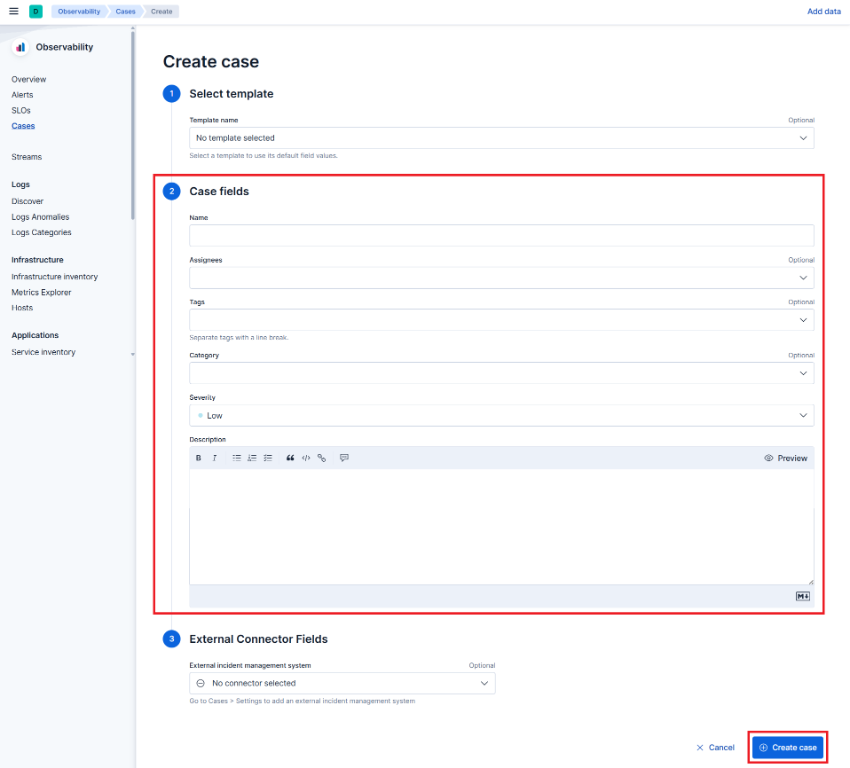
Click Create case in the top right corner. The form has three parts; only Case fields is required:
Select template: optional. A template prefills the fields below with default values, which is handy if your team opens the same kind of case often.
Case fields:
Name: a short title that says what is wrong and where, for example
Checkout latency above 1.5 s in production.Assignees: the people responsible for the case. Leave it empty if ownership isn’t decided yet.
Tags: keywords such as service, component or environment, so the case can be found and grouped later.
Category: a broader classification, for example the affected product area.
Severity: the impact of the issue, from Low to Critical. Choose it on the basis of what you know now; you can change it as the investigation progresses.
Description: the symptoms observed, the systems affected and what has been checked so far. Markdown is supported, so you can paste queries, command output or links.
External Connector Fields: optional. If an external incident management system is configured, select it here to push the case to it.
Click Create case to save it and open the case page.
Tip
You can also create a case, or add to an existing one, directly from an alert in the Alerts section. The alert is attached to the case with its context, so you don’t have to describe it again.
Work on a Case
The case page keeps the description and the full history of comments and changes in one place. While the issue is being handled:
Add a comment for each finding, decision or action taken, so that whoever picks up the case next can follow what has been done.
Attach the relevant alerts, so that the people working on the case see the same data.
Adjust the severity as the impact becomes clearer, and reassign the case when it moves to another team or on-call engineer.
Move the status from Open to In progress when someone starts working on it, and to Closed when the issue is resolved. Closed cases stay in the list and keep their full history.

